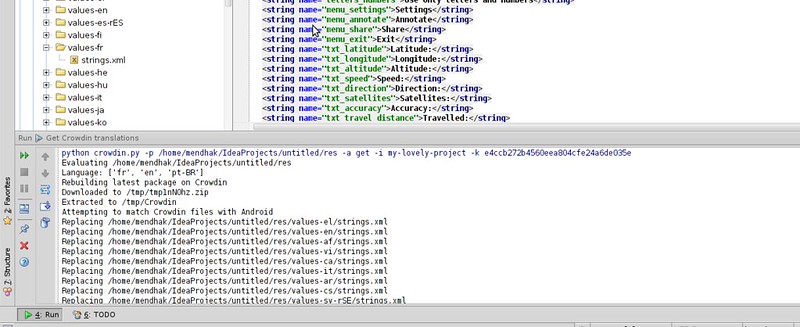
Crowdin to Android Importer
This Python script can be used from IntelliJ's External Tools or from the commandline to
- Get the latest Crowdin translations, replace matching localized strings.xml files in your Android project.
- Update the main translations file on Crowdin from your project's main strings.xml file.
Download
Get the latest version of the code
git clone git://github.com/mendhak/Crowdin-Android-Importer.git
This will create a folder and copy the necessary files into it.
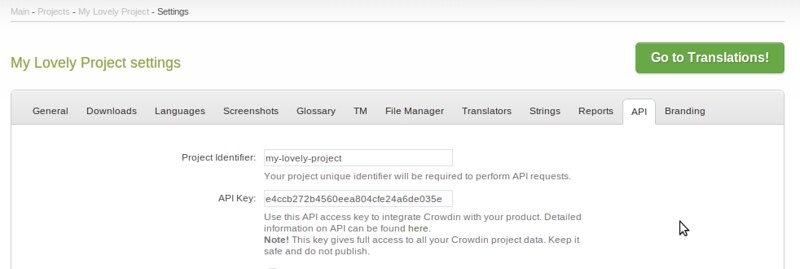
Crowdin API Key and Identifier
You will also need your project specific API key and identifier from Crowdin.
Command Line Usage
crowdin.py --p=PATH -a=get|upload -i my-crowdin-project -k 1234567
-h, --help
Shows the help message and usage
-p PATH, --path=PATH
The path to an individual strings.xml or a directory containing your strings.xml. It can even be the root of the project.
-a ACTION, --action=ACTION
Either get or update, without quotes. get is the default value and any value aside from update is assumed to be get
-i IDENTIFIER, --identifier=IDENTIFIER
The Crowdin project identifier, available under the API tab on your Crowdin Project's settings pages.
-k APIKEY, --apikey=APIKEY
The Crowdin project API key, available under the API tab on your Crowdin Project's settings pages.
IntelliJ IDEA Instructions
Click File > Settings...
Find External Tools and click the + to add a new tool.
Get Crowdin Translations
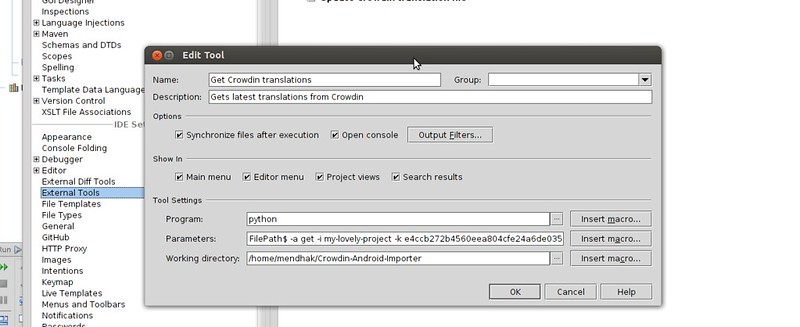
Program: python
Parameters: crowdin.py -p $FilePath$ -k b2b6e1b0672a280a37d66ec405d378e5 -i testing-the-api
Working directory: /home/mendhak/Code/Crowdin-Android-Importer/
The working directory is the path to where you downloaded the importer script. Replace the API Key and Identifier with your own values.
Update Crowdin Translation
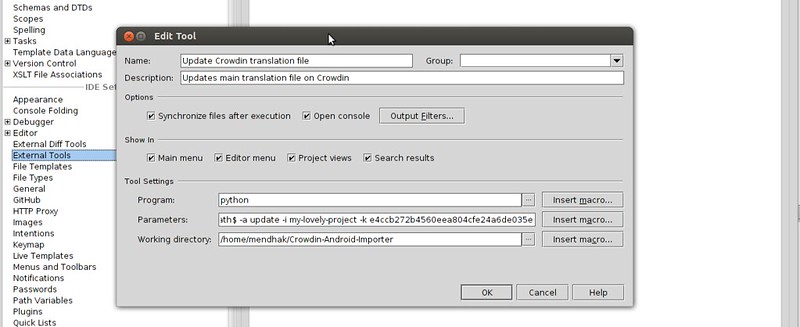
Program: python
Parameters: crowdin.py -p -a update $FilePath$ -k b2b6e1b0672a280a37d66ec405d378e5 -i testing-the-api
Working directory: /home/mendhak/Code/Crowdin-Android-Importer/
The working directory is the path to where you downloaded the importer script. Replace the API Key and Identifier with your own values.
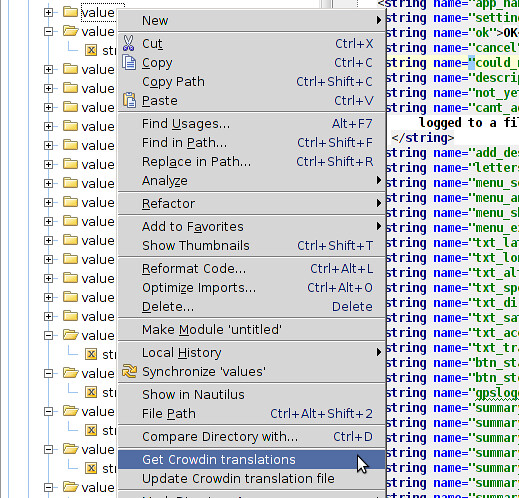
Context menu
The IntelliJ context menu will now show the two tools you have added above.
The tools are path sensitive.
If you click the 'Get Crowdin Translations' tool from the project root or res directories, the tool will get and apply all translations from Crowdin.
If you click the 'Get Crowdin Translations' from a specific strings.xml (ex:/projectroot/res/values-pt/strings.xml), the tool will only get the translation for that particular language.
The output will be visible at the bottom of your IntelliJ IDE.