I’ve mostly used terminals transactionally; though I don’t avoid them, I’ll usually interact with a terminal window to run a few commands, and get back to what I was doing. Over the past few years, though, this has been changing. Thanks to a profusion of modern text-based user interfaces (TUI) applications and modern terminals, it’s now becoming increasingly viable and enjoyable to spend extended amounts of time in here.
Its appeal lies in the sense of calm provided by these barebones display capabilities, which are being cleverly adapted into experimental new interaction patterns. This setup manages to provide a much-needed buffer against the increasingly hostile and clamorous nature of the modern web, and the vendor-infested browsers that host it.
Modern terminals
Over the past decade, several new terminal emulators have emerged, such as Ghostty, Alacritty, Kitty, and WezTerm. They differentiate themselves from the “legacy” terminals by offering more in the way of customization and configuration, and the ability to work in richer ways - think formatting, links, ligatures, scrollback, mouse gestures, themes, menus, and inline image rendering.
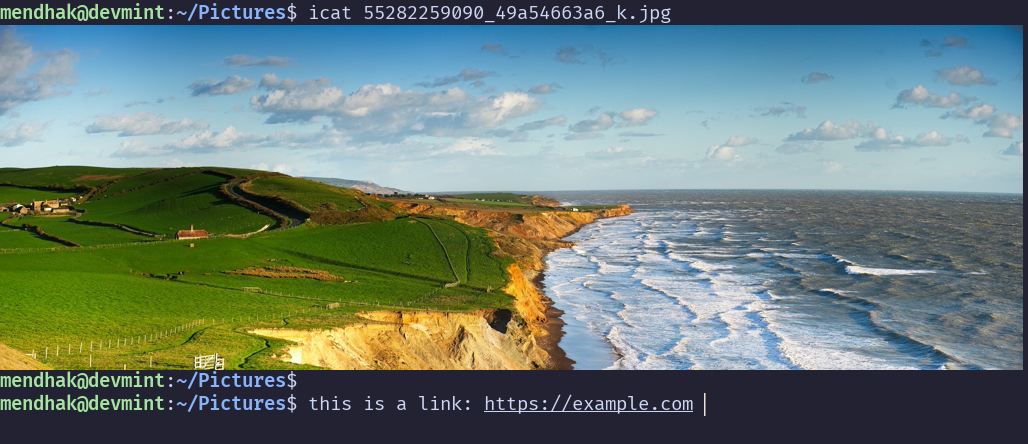
They’re pretty good at taking advantage of modern hardware, including GPU acceleration, which represents a significant architectural shift.
WezTerm
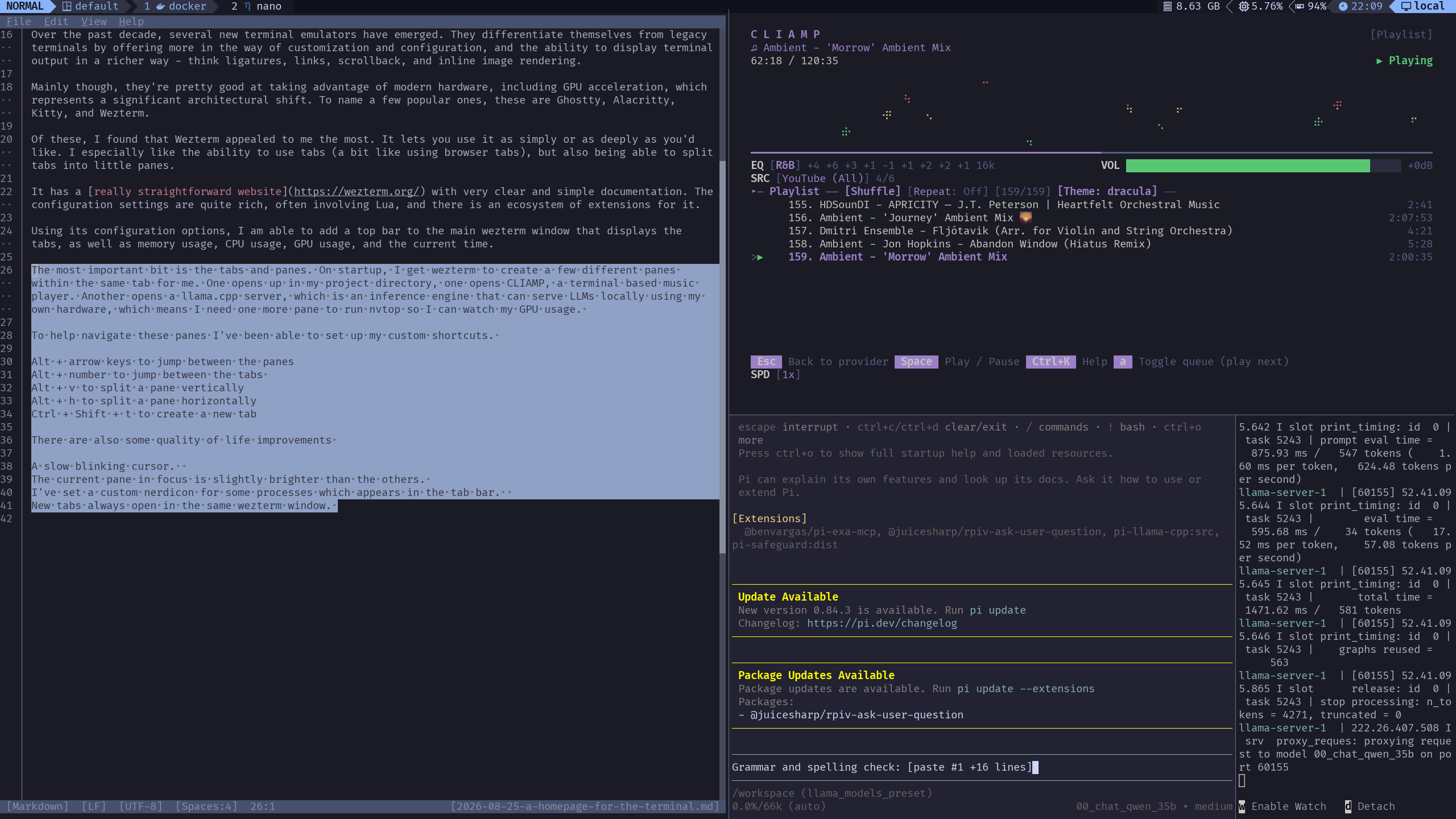
I am not wedded to any particular one, though at present I find that WezTerm appeals to me the most. WezTerm allows me to use it as simply or as complexly as I’d like. I appreciate the ability to use tabs (not too unlike browser tabs), and being able to split my view into panes, with each pane running a different program.
WezTerm has a straightforward and well organized website with very clear and simple documentation. The configuration options are quite rich, and there is an ecosystem of extensions for it.
This mixture of customizations, tabs, and panes lets me set up a starting point for when I open up the terminal every morning. I consider it a homepage, or a starting point for my activities. I can then run various applications and move panes around to help me with the work I’m doing.
In this screenshot below I have edit, in which I’m writing up this post, taking up the entire left half. On the right, cliamp streams from YouTube, and the bottom pane is running pi.dev against a local LLM for spelling checks.
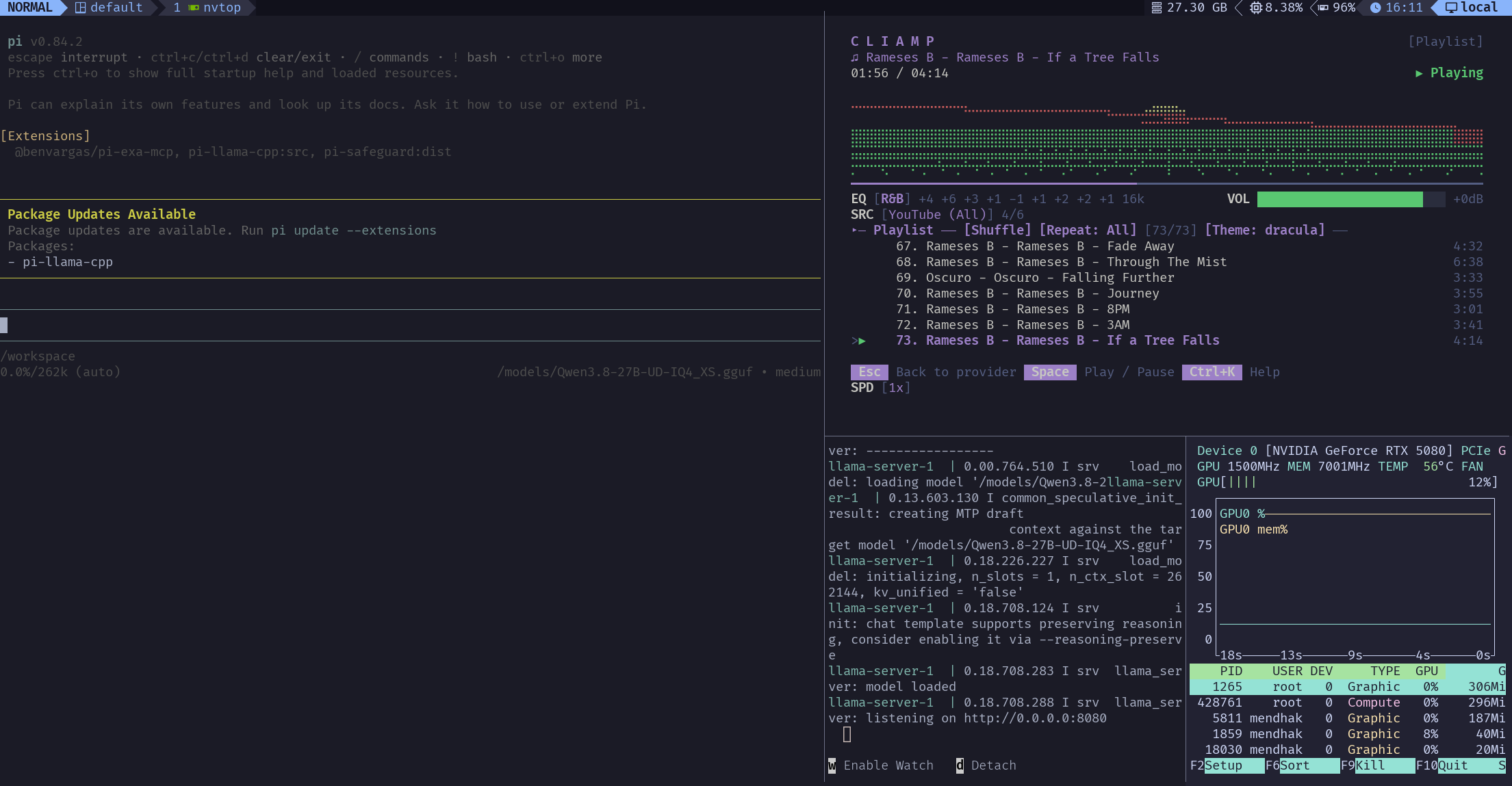
In a different workflow, I might have pi.dev taking up the entire left side, while the right is occupied by docker compose and nvtop so that I can watch my GPU usage.
The flexibility of having multiple applications together in a single view affords a lot, especially to reduce context switching. It even makes me wonder about other possibilities… whether I can play YouTube videos in here, render web pages, or even embed a full browser? Should I look at neovim? But those are a rabbit hole for future me.
How I’ve configured WezTerm
The bit that makes it a homepage is the panes setup. On startup, I get WezTerm to create a few different panes within the same tab for me. One opens up in my project directory, one opens cliamp. Another opens a llama.cpp server in my LLM workspace, which is an inference engine that can serve LLMs locally using my own hardware, which means I need one more pane to run nvtop so I can watch my GPU usage.
See the code
wezterm.on('gui-startup', function(cmd)

  wezterm.log_info("Received startup cmd:")

  local tab1, pane_project, window = mux.spawn_window({
    workspace = 'default',
    cwd = '/home/mendhak/Projects'
  })

  local pane_cliamp = pane_project:split({
    direction = 'Right',
  })
  pane_cliamp:send_text("cliamp\n")

  local pane_llm = pane_cliamp:split({
    direction = 'Bottom',
    cwd = '/home/mendhak/Projects/local-llm-workspace',
  })
  pane_llm:send_text("docker compose up\n")

  local pane_nvtop = pane_llm:split({
    direction = 'Right',
  })
  pane_nvtop:send_text("nvtop\n")

  tab1:activate()
  pane_cliamp:activate()
end)
To help navigate these panes I’ve set up a few custom shortcuts.
Alt + ↑, ↓, ←, → arrow keys to jump between the panes
Alt + 1,2,3 to jump between the tabs
Alt + v to split a pane vertically
Alt + h to split a pane horizontally
Alt + t to create a new tab
See the code
config.keys = {
  -- Fast Layout Splits & Tabs
  { key = 'v', mods = 'ALT', action = wezterm.action.SplitHorizontal{ domain = 'CurrentPaneDomain' } },
  { key = 'h',  mods = 'ALT', action = wezterm.action.SplitVertical{ domain = 'CurrentPaneDomain' } },
  -- Custom Tabs
  { key = 't', mods = 'ALT', action = wezterm.action.SpawnTab 'CurrentPaneDomain' },

  -- Fast Pane Navigation using Alt + Arrow Keys
  { key = 'LeftArrow',  mods = 'ALT', action = wezterm.action.ActivatePaneDirection 'Left' },
  { key = 'RightArrow', mods = 'ALT', action = wezterm.action.ActivatePaneDirection 'Right' },
  { key = 'UpArrow',    mods = 'ALT', action = wezterm.action.ActivatePaneDirection 'Up' },
  { key = 'DownArrow',  mods = 'ALT', action = wezterm.action.ActivatePaneDirection 'Down' },

  -- Fast Tab Swapping using Alt + Numbers
  { key = '1', mods = 'ALT', action = wezterm.action.ActivateTab(0) },
  { key = '2', mods = 'ALT', action = wezterm.action.ActivateTab(1) },
  { key = '3', mods = 'ALT', action = wezterm.action.ActivateTab(2) },

}
There are also a few subtle quality of life improvements.
A slow blinking cursor, to keep things calm.
-- Make the cursor slow, calm, and unobtrusive.
config.default_cursor_style = 'BlinkingBar'
config.cursor_blink_rate = 1200
I make the current pane a little more in focus by slightly dimming the inactive panes.
config.inactive_pane_hsb = {
  hue = 1.0,
  saturation = 0.9,
  brightness = 0.6,
}
The top tab bar is quite involved, and it’s actually configuration for a WezTerm extension called tabline.wez.

I’ve gotten it to show the current tabs, of course, and on the right is the memory usage, CPU usage, GPU usage, and the current time. The GPU usage is fetched through a custom function that calls nvidia-smi. As an added touch, I’ve set custom nerdfonts for some known applications if they’re running in a tab.
See the code
-- To get current VRAM, used in tabline
local function vram()
local handle = io.popen("nvidia-smi --query-gpu=memory.used,memory.total --format=csv,noheader,nounits 2>/dev/null")
if not handle then return "VRAM N/A" end
local result = handle:read("*a")
handle:close()
local used, total = result:match("(%d+),%s*(%d+)")
if used and total then
local percentage = math.floor((tonumber(used) / tonumber(total)) * 100 + 0.5)
return string.format(" %d%%", percentage)
end
return " N/A"
end
local tabline = wezterm.plugin.require("https://github.com/michaelbrusegard/tabline.wez")
tabline.setup({
options = {
icons_enabled = true,
theme = 'Catppuccin Mocha',
tabs_enabled = true,
theme_overrides = { },
section_separators = {
left = wezterm.nerdfonts.pl_left_hard_divider,
right = wezterm.nerdfonts.pl_right_hard_divider,
},
component_separators = {
left = wezterm.nerdfonts.pl_left_soft_divider,
right = wezterm.nerdfonts.pl_right_soft_divider,
},
tab_separators = {
left = wezterm.nerdfonts.pl_left_hard_divider,
right = wezterm.nerdfonts.ple_left_hard_divider_inverse,
},
},
sections = {
tabline_a = { 'mode' },
tabline_b = { 'workspace' },
tabline_c = { },
tab_active = { 'index', { 'process', padding = { left = 0, right = 1 },
process_to_icon = {
['nvtop'] = { wezterm.nerdfonts.md_expansion_card, color = { fg = '#76B900' } },
['python'] = { wezterm.nerdfonts.dev_python, color = { fg = '#3776AB' } },
['nano'] = { wezterm.nerdfonts.dev_nano, color = { fg = '#4A90E2' } },
['top'] = { wezterm.nerdfonts.md_monitor_dashboard, color = { fg = '#E5C07B' } },
['curl'] = { wezterm.nerdfonts.md_protocol, color = { fg = '#008080' } },
['cliamp'] = { wezterm.nerdfonts.md_music },
['edit'] = { wezterm.nerdfonts.fa_edit },
}
}
},
tab_inactive = { 'index', { 'process', padding = { left = 0, right = 1 } } },
tabline_x = { 'ram', 'cpu', vram, throttle=10 },
tabline_y = { 'datetime' },
tabline_z = { 'domain' },
},
extensions = {},
})
Why not tmux
I’ve made much about the tabs and panes. The concept itself isn’t new, Linux veterans will be familiar with tmux, a terminal multiplexer tool which allows the creation of several pseudo-terminals within a single terminal, even over SSH sessions. It has existed for a long, long time. I did give it a good try, but much like vi, the learning curve is steep, and one I didn’t consider it a learning curve I needed to climb just yet.
My thoughts and the future
This shift from using the terminal as a mere utility, to using it as a deliberate workspace, has mostly been about reclaiming focus. Building this “homepage” setup as I refer to it mentally, has helped create a somewhat useful digital environment that serves as a sanctuary of sorts. It’s not that I now avoid leaving the terminal, rather I’m able to minimize the friction of context switching, and that has in turn helped change my relationship with my machine.
I’m still tinkering. It’s unlikely that there will ever be a perfect endgame, nor is it likely I stay with this particular terminal forever; as compelling alternatives emerge, either in terms of emulators or applications or workflows, I’ll certainly explore them. For now, I’m quite happy with what I’m able to mix and match for myself.