Traditionally there have been two main ways to deal with having to run Windows applications when using a Linux environment as a daily driver. The first is to dual boot into Windows, and the other is to use an emulation layer such as Wine or Proton.
Recently I have been exploring alternatives to these approaches — running Windows applications in a lightweight Docker container or virtual machine. This has the advantage of near native performance, and without compatibility issues that may arise through emulation layers. All this while staying within Linux but maintaining a clean separation.
In this screenshot below I am running Affinity Studio natively on my Linux Desktop, while the application itself is running in a Windows 11 installation inside a Docker container.
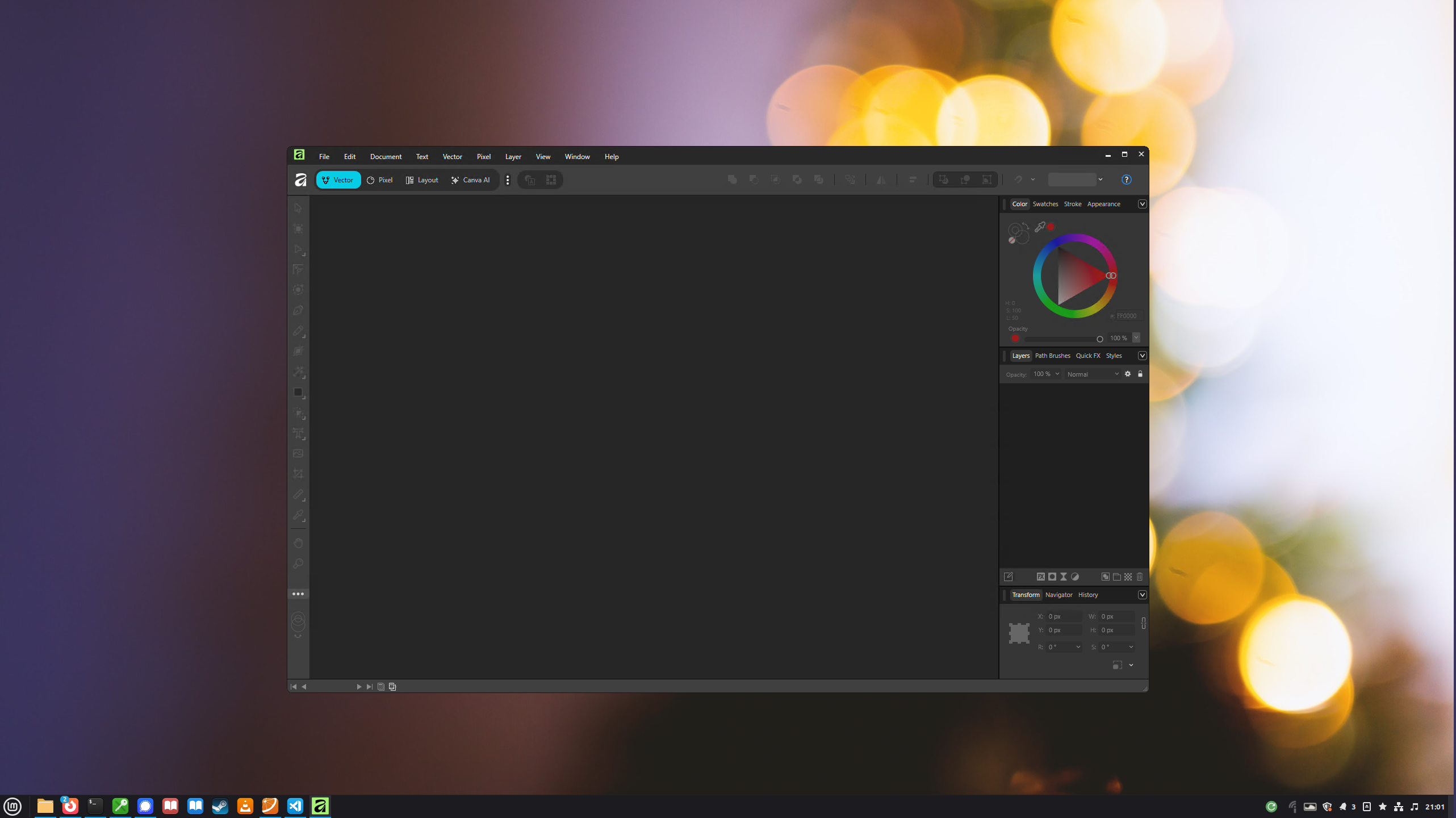
WinApps and Winboat are two projects that facilitate this approach.
WinApps
WinApps can work with Windows installations in containers or virtual machines; it sets up shortcuts to Windows applications of your choosing, and integrates them into your Linux desktop environment including the system menu.
It can work with any Windows installation in a Docker container, Podman, or a Virtual Machine, it can even be a different server on the network, it just needs to be accessible via RDP.
The Winapps setup guide is quite straightforward and it walks you through setting up a Windows installation in a Docker container, a ready to go Docker Compose file, and a Winapps configuration file to connect to the Windows instance. An interesting aspect of the Docker approach is that the Windows VM is accessible via a browser tab using NoVNC, so you can interact with the Windows desktop if needed.

Once this is set up, it’s a matter of running the Winapps script which helps configure the actual integration of shortcuts.

WinApps can be pretty flexible, and it even lets you create your own custom shortcuts to standalone applications. As an example, I recently needed to run the Epomaker Aula software for configuring my mechanical keyboard. I just ran the application from the Windows VM, passing it the USB device from Linux.
If you need to change the shortcuts available, or if you need to install different applications, you’ll have to rerun the setup script again. In any case, the integration into the system menu is pretty nice to have and feels seamless.
WinBoat
WinBoat works quite similarly to WinApps behind the scenes, but where WinApps focuses on being flexible, WinBoat focuses on making the process as simple and automated as possible.
It comes with its own installer GUI, as an AppImage or .deb package. The installer asks a few questions then automatically downloads the Windows ISO, sets up the Docker container, and configures everything.
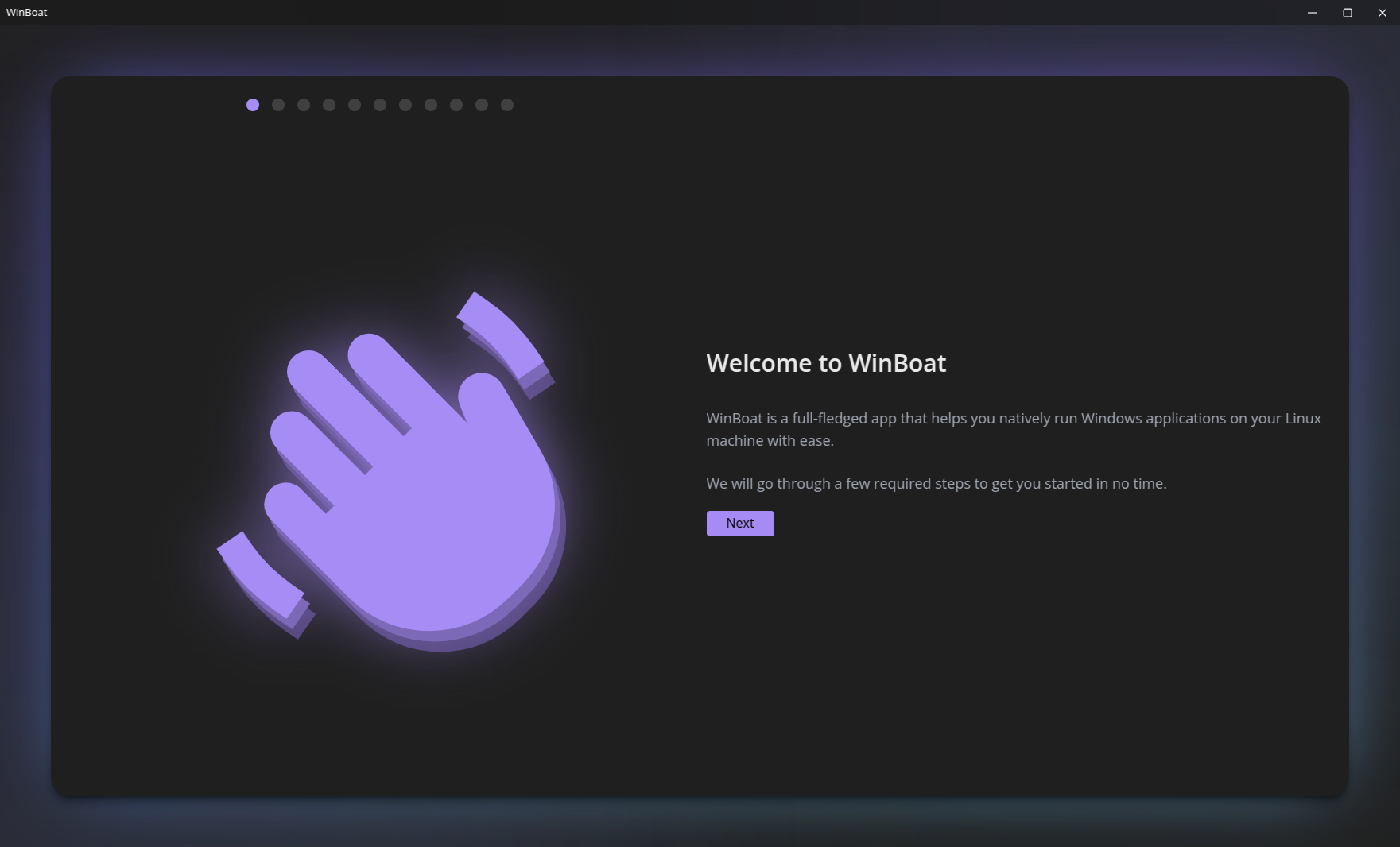
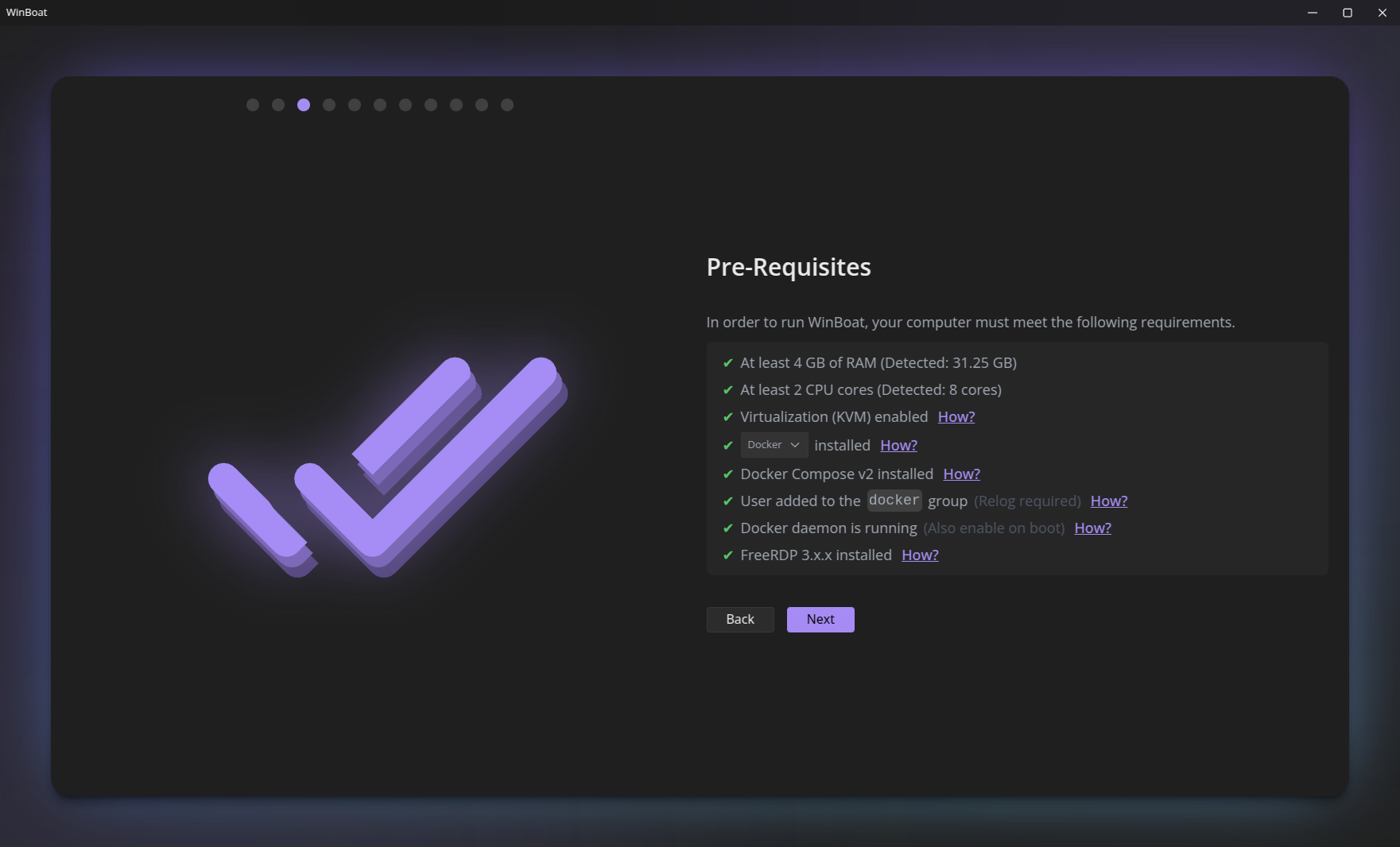
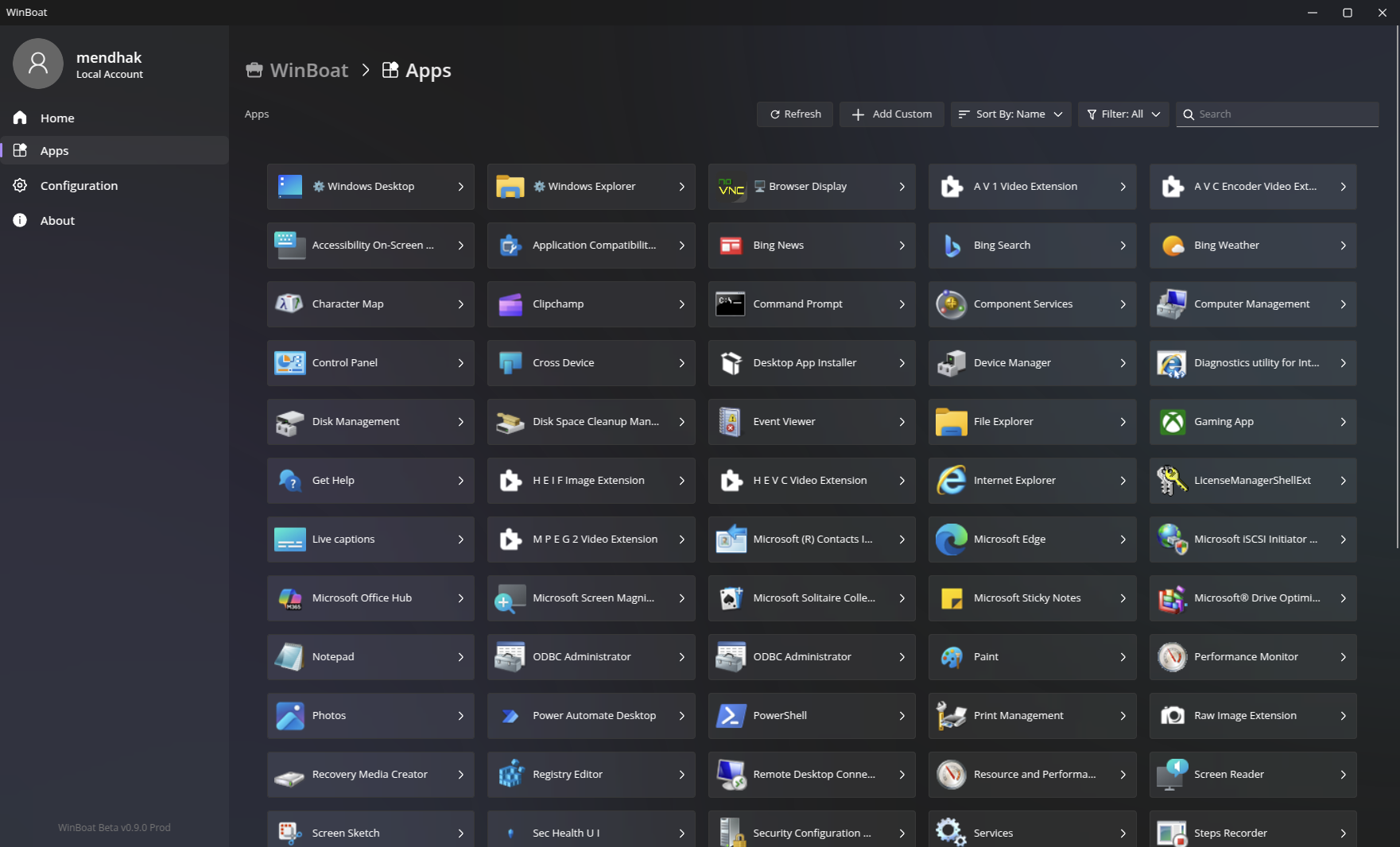
Once that’s done, the WinBoat application lets you launch the Windows applications you need from its own UI. It doesn’t integrate the Windows applications with the system menu, instead it keeps the list contained within its own interface. I found this to be a nice and clean approach as well, it makes launching the application a deliberate action and keeps things separated.
Brief mention - Cassowary
It’s worth mentioning the project Cassowary as well, it’s a similar project, but its happy path is using a Windows instance running in QEMU/KVM with virt-manager, but not Docker. It also integrations Windows applications into the Linux system menu, just like WinApps does. However the project hasn’t seen much activity recently, and I really wanted to focus on the Docker based approaches.
Test notes
I liked both WinApps and WinBoat, both were pretty straightforward to set up and use. I liked that WinApps was quite flexible in where the Windows instance was running, while WinBoat was very user friendly.
There’s a slight lag the first time I launched an application as the RDP connection is established, but after that the performance was quite good.
There’s no real GPU integration that I could see, though WinBoat has an open issue about it. Having GPU integration would be extremely useful for the photo processing application I like to use, ON1 Photo RAW, and would give me one less major reason to dual boot. However, I still wouldn’t use this to run games; for that I’d still dual boot or use Proton thanks to the excellent work being done there.
Overall, these feel like a decent solution for running the occasional Windows application, but not for intense and prolonged use. It’s a nice option to have in the toolbox for when it’s needed, and it’s good to see that these projects have matured well over the past few years.
In an ideal world, this wouldn’t be necessary, but in reality there are oftentimes applications that are exclusive to non-free operating systems. So, wanting to run such applications can sometimes be necessary as many companies see absolutely nothing wrong with mining every possible advantage from the Linux ecosystem while contributing precisely nothing in return, aside from the occasional platitude alongside their Windows/Mac-only installers (a behaviour not dissimilar to leeches).