While Linux is the best environment for development purposes, Windows has been my go-to for gaming and photo processing needs. But given how much time I spend in Linux, I naturally wondered whether I could reduce the need to dual boot.
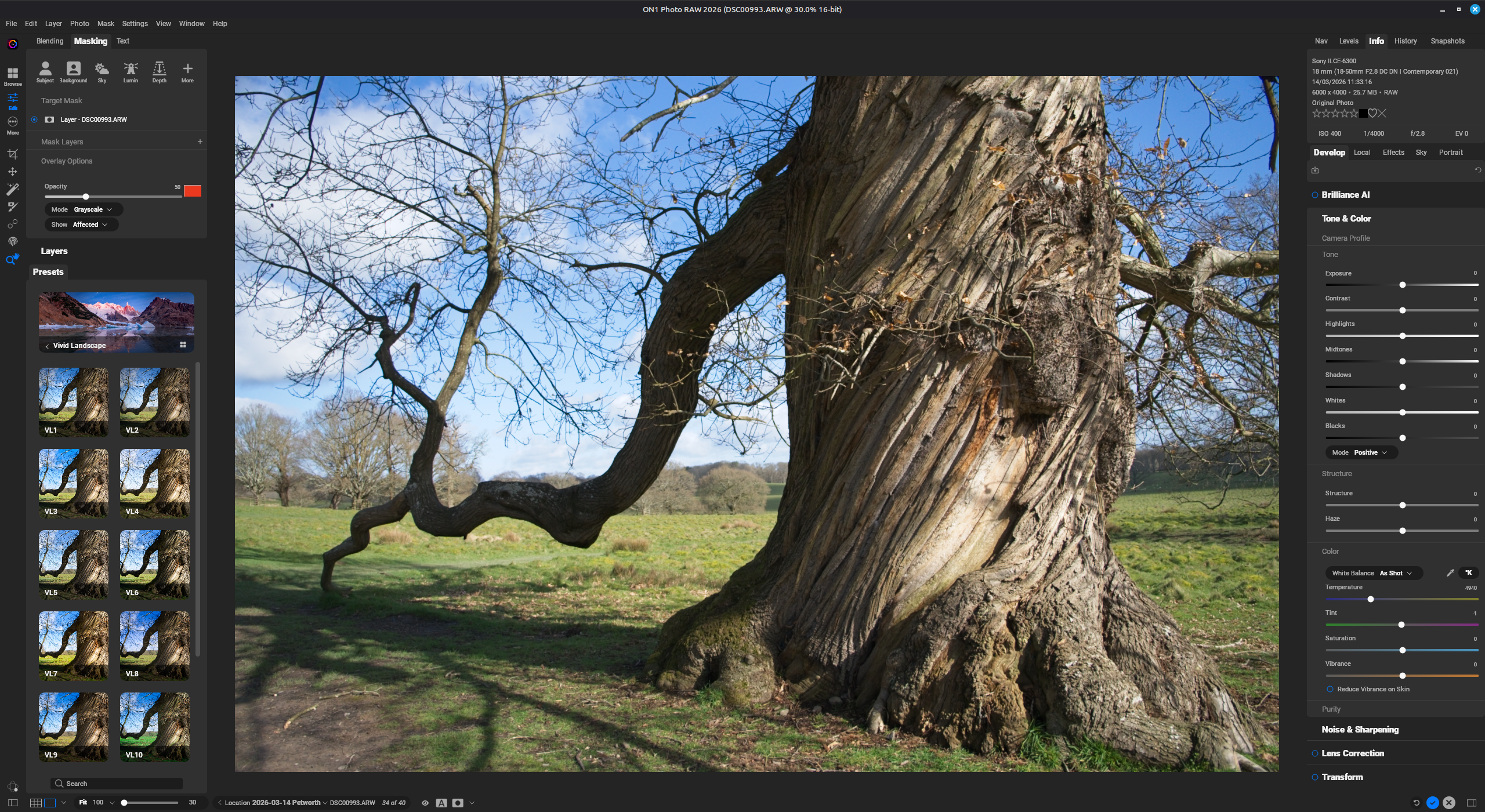
Gaming has certainly improved considerably, thanks to the efforts of Proton and Wine, but photo processing has always felt out of reach. Recently though, the same effort that’s gone into gaming has made it possible to run ON1 on Linux, and it works quite well. In this post I will walk through the steps I took.
Approach
I have previously explored running Windows applications in Linux natively using containers, but that approach is limited to CPU-bound applications. There isn’t currently a way to run GPU-accelerated applications in that way, which is often required for photo processing. Linux native photo processing applications do exist, but I haven’t yet tackled the steep learning curve to get them working the way I want.
The most common way to run Windows applications on Linux is through Wine, which is a compatibility layer that emulates the Windows API and is sufficient for most applications. However, the most popular photo processing software, Lightroom, simply doesn’t work well on Wine.
Thankfully I recently switched to ON1 Photo Raw which has been working well for what I need. In my searching I came across a reddit thread discussing getting ON1 working with Wine, so I decided to give it a try and after a bit of trial and error I got it working.
Steps
The steps involved are to get Lutris to manage Wine, and run the ON1 installer and its dependencies through Lutris.
Lutris is a game manager for Linux, but it also supports non game applications. It can manage Wine versions and configurations, which makes it a helpful single-place to manage what you need for an application.
The steps below are what I did on Linux Mint 22.3.
Get Lutris and Proton
Download and run the .deb package from the Lutris Github repo:
wget https://github.com/lutris/lutris/releases/download/v0.5.22/lutris_0.5.22_all.deb
sudo apt install ./lutris_0.5.22_all.deb
Now to get the Wine version needed, we’ll need “ProtonUp-Qt” from the software manager. Upon launching ProtonUp, it detects that Lutris is installed.
Click ‘Add version’ and select the latest GE-Proton version, which for me was GE-Proton10-34. It downloads and places GE-Proton in the right place for Lutris to use.
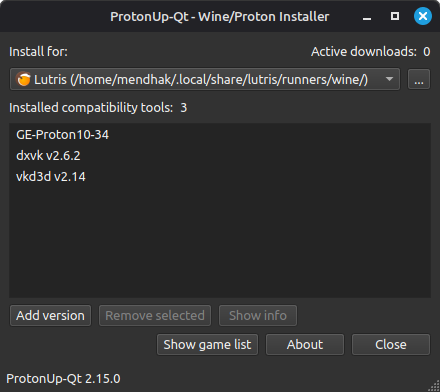
That’s all ProtonUp is needed for, close it.
Get ON1 dependencies
To get ON1 running in Wine, there are three files needed.
The ON1 installer EXE itself, which you can get from the ON1 website.
The Microsoft .NET 4.8 offline installer, available here.
And WinMetadata.zip, available here.
Lutris steps
Open Lutris, click the + button, and a dialog with install options appears.
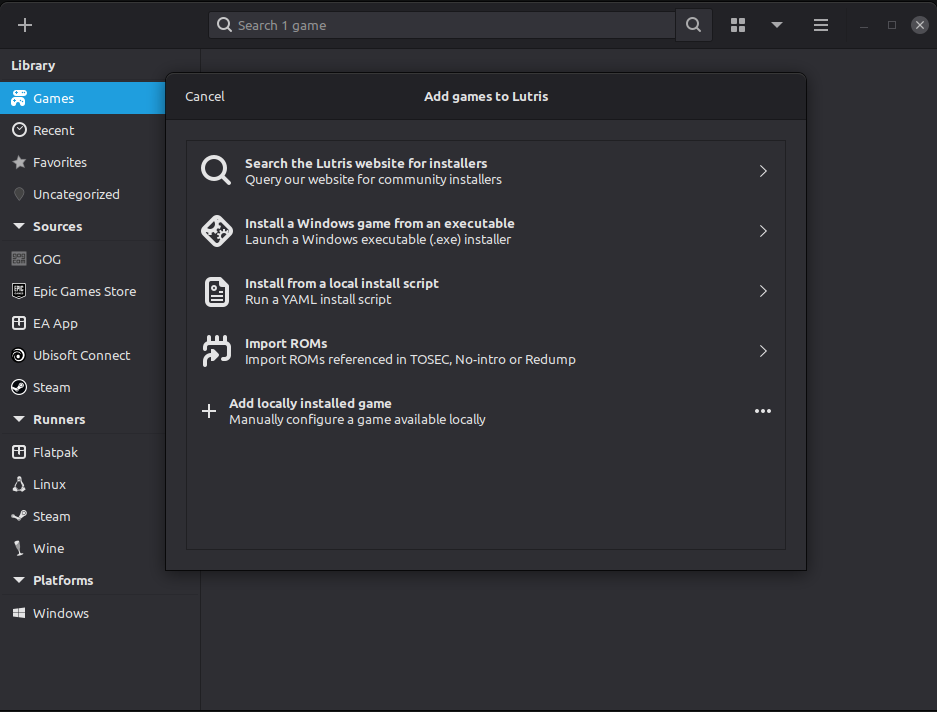
It’s possible to do the manual method, but the local install script method is simplest, it takes a YML file which describes the steps needed to get ON1 and its dependencies working. Save this file:
name: ON1 Photo RAW 2026
game_slug: on1-photo-raw-2026
version: "For use with Linux Mint"
slug: on1-photo-raw-2026
runner: wine

script:
  files:
    - setup: N/A:Please select the ON1 Photo RAW 2026 installer EXE
    - dotnet_installer: N/A:Please select the Microsoft .NET 4.8 Offline Installer (https://download.microsoft.com/download/f/3/a/f3a6af84-da23-40a5-8d1c-49cc10c8e76f/NDP48-x86-x64-AllOS-ENU.exe)
    - WinMetadata: N/A:Please select the WinMetadata.zip file (https://archive.org/download/win-metadata/WinMetadata.zip)

  game:
    arch: win64
    prefix: $GAMEDIR
    exe: $GAMEDIR/drive_c/Program Files/ON1/ON1 Photo RAW 2026/ON1 Photo RAW 2026.exe

  wine:
    version: GE-Proton10-34
    dxvk: true
    vkd3d: true

  installer:
    - task:
        name: create_prefix
        description: Creating Wine prefix...
        arch: win64
        prefix: $GAMEDIR

    - task:
        name: wineexec
        description: Installing .NET 4.8 (Click through the Microsoft installer windows!)
        prefix: $GAMEDIR
        executable: dotnet_installer

    - execute:
        file: mkdir
        args: -p "$GAMEDIR/drive_c/windows/system32/WinMetadata"
        description: Creating system directory...

    - execute:
        file: unzip
        args: -j -q -o $WinMetadata -d "$GAMEDIR/drive_c/windows/system32/WinMetadata"
        description: Extracting Metadata UI files...

    - task:
        name: winetricks
        description: Installing dependencies (vcrun2022, fonts, win11, vulkan renderer)...
        arch: win64
        prefix: $GAMEDIR
        app: "--unattended --force vcrun2022 corefonts tahoma win11 renderer=vulkan"

    - task:
        name: wineexec
        description: Running ON1 installer...
        arch: win64
        prefix: $GAMEDIR
        executable: $setup
        args: TargetDir="C:\Program Files\ON1\ON1 Photo RAW 2026"
In the Lutris install dialog, select “Install from a local install script”, and pass it the YML file you just saved, and click Install. It will then ask you to provide the three files needed.
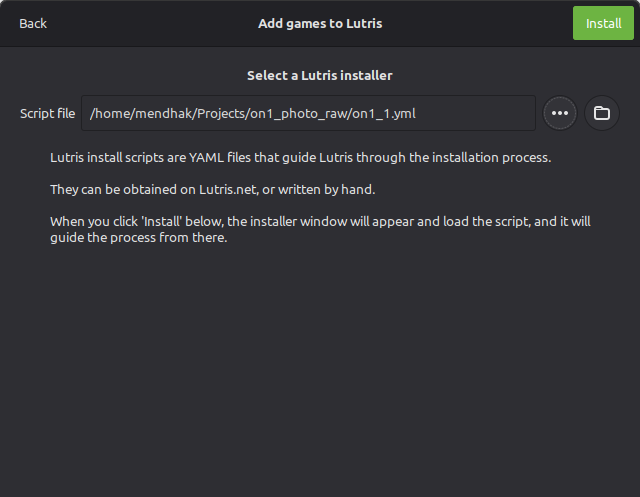
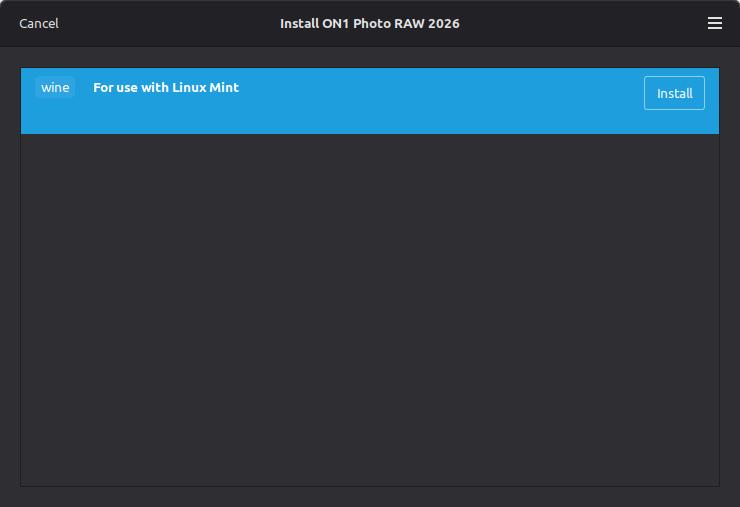
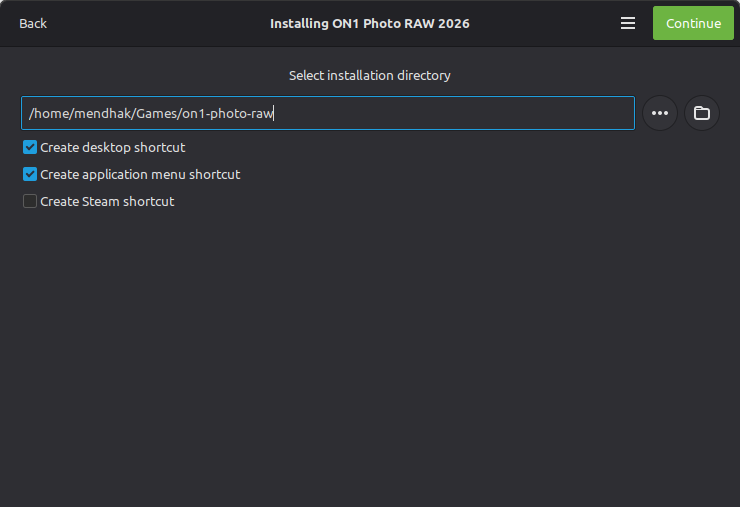
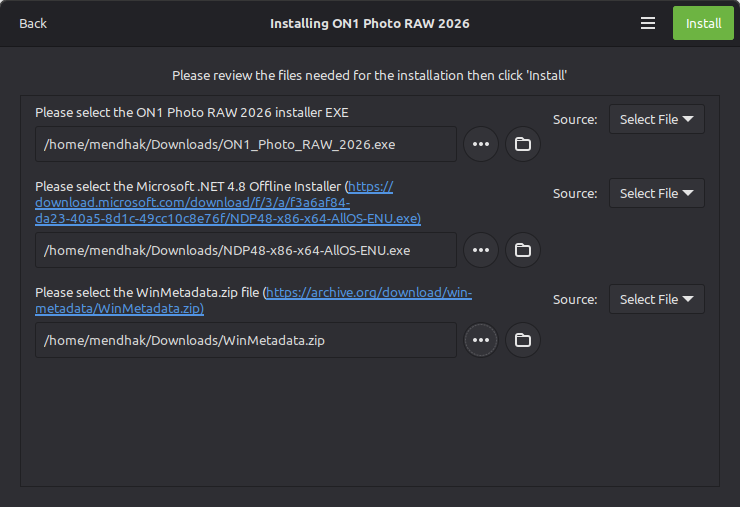
Clicking Install will then run the installer steps, which can take a while. During the installation, the Microsoft .NET installer will pop up, just click through the steps to complete it.
Eventually, the ON1 Photo Raw installer will appear. It should default to the path C:\Program Files\ON1\ON1 Photo RAW 2026, so just click through the installer until it finishes. Do not choose to launch ON1 at the end though. Instead, just close the installer and return to Lutris.
An application entry for ON1 should now appear in the Lutris window.
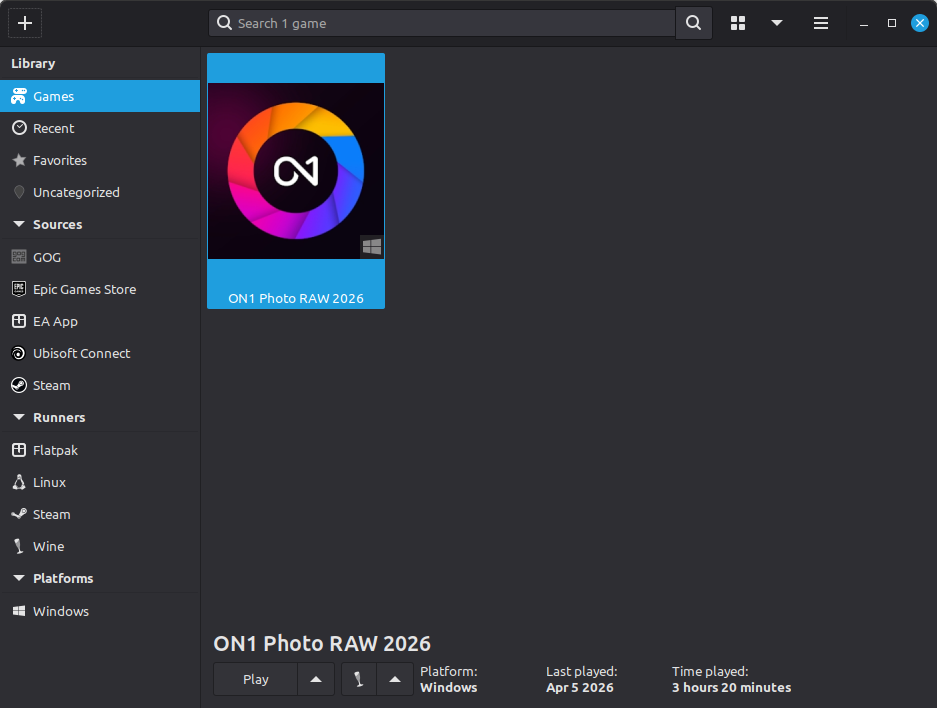
Click the play button to launch it, and ON1 Photo Raw should launch!
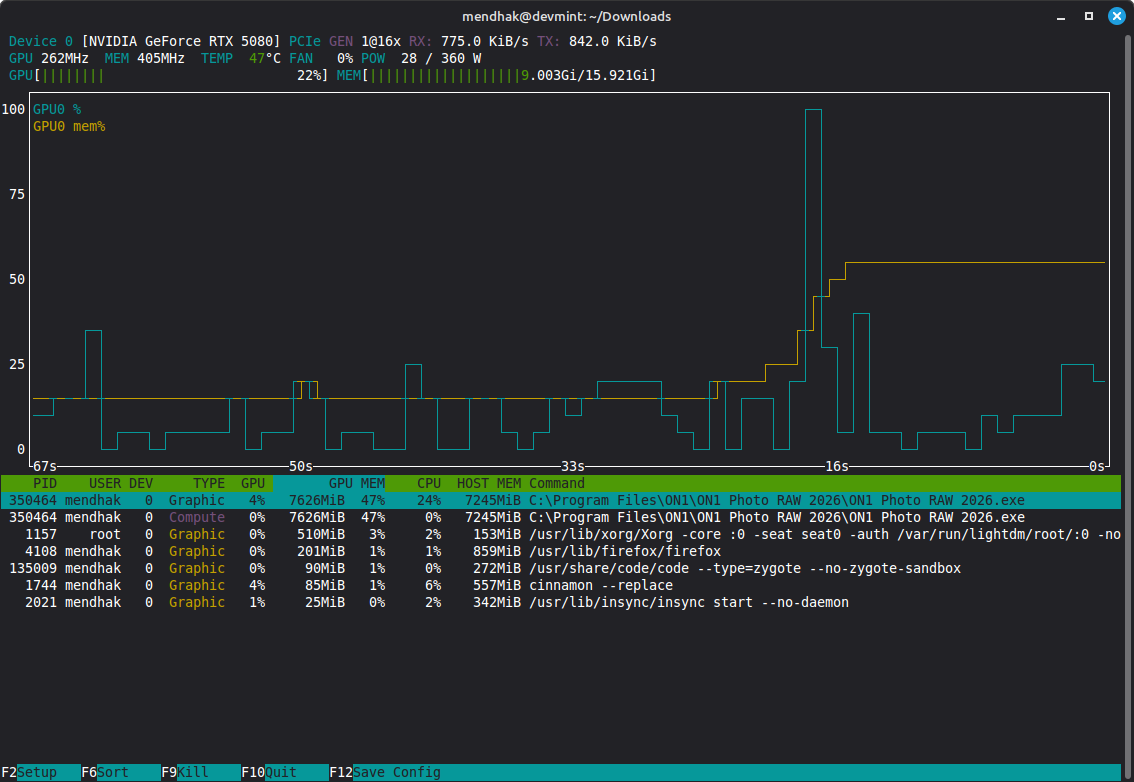
And just to prove that GPU acceleration is working, here is nvtop showing ON1 hogging some VRAM:
Troubleshooting and notes
Blank screen and .NET errors
It wasn’t exactly smooth sailing getting to this point. When I first tried running the installer, I kept getting these .NET 4.8 errors.
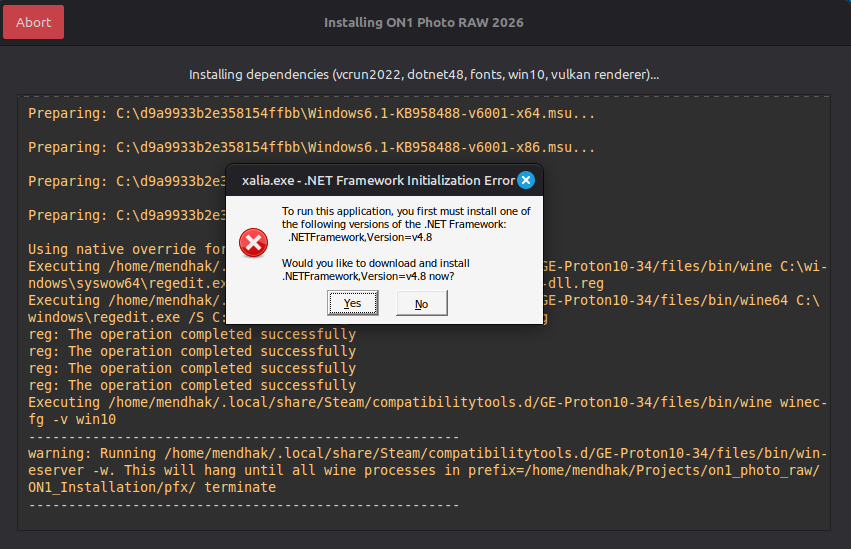
I could only click No here, as Yes launched a browser window. Ignoring the errors and proceeding resulted in ON1 launching, but it was completely dark. Only the first run tutorial would appear, highlighting something I couldn’t see.
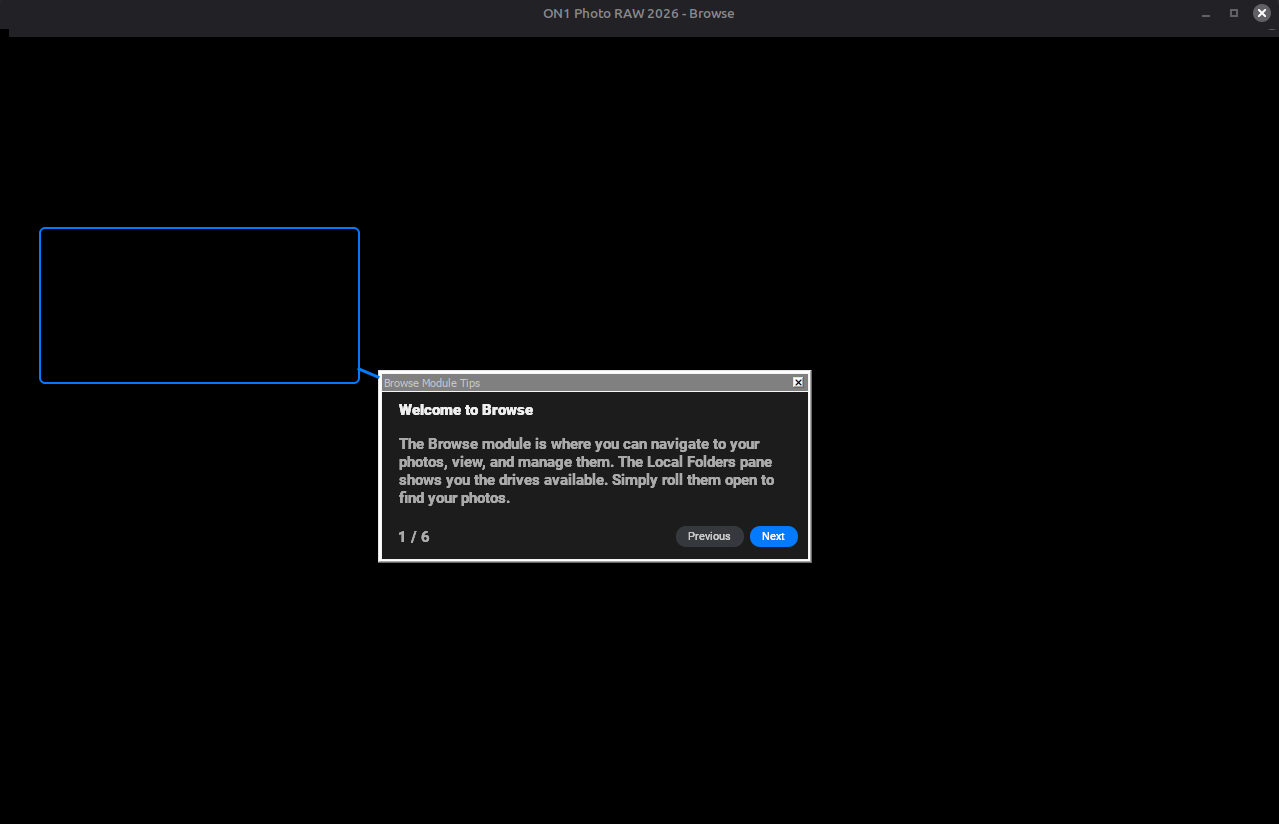
When I then went in and installed .NET 4.8 manually through Lutris, the ON1 application launched properly, so that was the key fix.
Performance
It might just be because I’m doing light testing but the performance feels really fast, and I’m not sure why. It’s not like I’m just browsing either, I’m making it go through masking layers, using some of the generative features, including erase, sky replacements, etc. It feels quite fast, and it’s definitely using the GPU.
ON1 files and syncing
ON1 sidecar files, which hold the editing information for images, worked right away when I previewed a folder from a photography trip. I pointed at the X: drive which is mapped to my Linux home directory, which in turn is syncing back to Google Drive through Insync. I’ll need to be a little careful with the arrangement here, I won’t want to end up with conflicts.